At a glance
Do you change your passwords regularly? Are you sure your password is secure? Here are a few tips and tricks.
Forget "1234" and other "password" combos. In this article, we'll go through, step by step, what makes a secure password.
Secure passwords: what do Belgians use?
When it comes to secure passwords, Belgians still have quite a way to go! The Safeonweb awareness campaign about passwords draws an alarming conclusion: we don't protect ourselves enough. Proof? Let's look at the most commonly used passwords in Belgium: 123456, azerty, abc123, azertyuiop, wachtwoord, pokemon…
According to our survey, 30% of Belgians never change their email password. Another 30% admit to changing their codes less than once a year. Only 3% of respondents change their password every month.
Why use a secure password?
Your password is like a lock on a safe. It secures your data. But if the lock's code is "1111", a thief will quickly get their hands on your loot. Is your password "azerty"? Too easy for a hacker, who'll have a field day plundering your accounts.
A secure password is an additional barrier. Think of those big safes with complicated locks, like the ones you see in heist movies. The more complicated the locks, the longer it takes crooks to break through them.
Just like in the movies, this protection nonetheless remains relative. No matter how secure it is, your password is not a 100% guarantee of protection. It only delays or discourages a potential hacker.
How do you create a secure password?
Using your pet's name, your partner's first name or a date of birth can be a good start, but it's not enough.
Here's a good trick: to create a secure password, take a look around you. Pick an object, a colour, a number and an onomatopoeia. For example, around me, I have a shirt, a white cat, three magazines.
My password could be "Shirt-WHITE_3-wow!". At least that one, I can remember.
The key to a secure password is randomness. Mix upper and lower case, add numbers and symbols (hyphens, exclamation marks, at signs, hashtags). Create a logic that suits you.
Don't feel able to create a secure password on your own? Then use a password generator.
Using a password generator
Your browser's password generator
Most browsers offer, when you sign up on a new site, to choose a strong password. This password often looks something like this: "fKn8hMM3Bqv8!rY". A completely random string of numbers and letters.
This secure password is then meant to let you browse simply and safely.
To find this password again:
- On Chrome: click the three small vertical dots at the far right of your browser window. Then go to "Settings". A new page opens. You'll find your password under the "Autofill" tab.
- On Safari: go to preferences, then the "Passwords" tab. You'll need to authenticate first, after which you can view all your codes.
- On Edge: click the three small horizontal dots at the far right of your browser window. Then go to "Settings". A new page opens. You can then find your password under the "Profiles" tab, then "Passwords".
Two free online password generators:
You can select different password creation options: with numbers, upper or lower case letters, special characters. You can also choose the number of characters in the password. Then simply click "Create your password".
2. https://www.avast.com/fr-be/random-password-generator
Several options are available: choose the code's length and select the characters used. Just press the two arrows to refresh the password.
How do you test a password?
Have you created your own password and want to know if it's strong enough? A simple Google search will help you find sites that can tell you. Here's an example: https://password.kaspersky.com/fr/
Type your password into the "Check your password" field and let the site do the checking. The verdict may be:
- "Good password!" No worries, your password is secure.
- "It's high time you changed your password!": take that advice literally!
Password managers: how do they work?
A password manager is software, either online or installed on your computer. This software lets you keep all your passwords in a safe place. Your only job? Remember the single password that unlocks all the others.
There are many password managers you can download online. Most of them are paid tools. Some of these tools are also compatible with your smartphone. Feel free to take a look on Google to find the password manager that suits you best.
Good to know: the terms "password vault" and "password manager" are synonyms. They refer to the same type of tool for managing your personal codes.
What to do if your password has been stolen or your identity hijacked?
- Change your password immediately. If you use the same one for several accounts, change those passwords too, ideally using one password per account.
- Restart your computer and run a full scan with your antivirus software.
- If it's an important password (e.g. one giving access to a site with your personal, financial or banking data, etc.), file a complaint with the Police or via the Point de Contact platform.
Redion's Safe & Connected assistance service also lets you explain your problem to a specialist, who will advise you on the legal steps to take.
When a secure password isn't enough...
Whenever possible, prefer sites that offer two-factor authentication. This is a method that relies on two different verification factors to confirm your identity. You've certainly already used it. These checkpoints can vary widely. They may include:
- Sending a code by SMS.
- Requesting activation of a digital key.
- Sending an email to a backup email address.
- A security question, such as: the name of your first pet or your mother's maiden name.
- Using biometric data: fingerprint or facial recognition identification.
(Click here to enlarge the image)
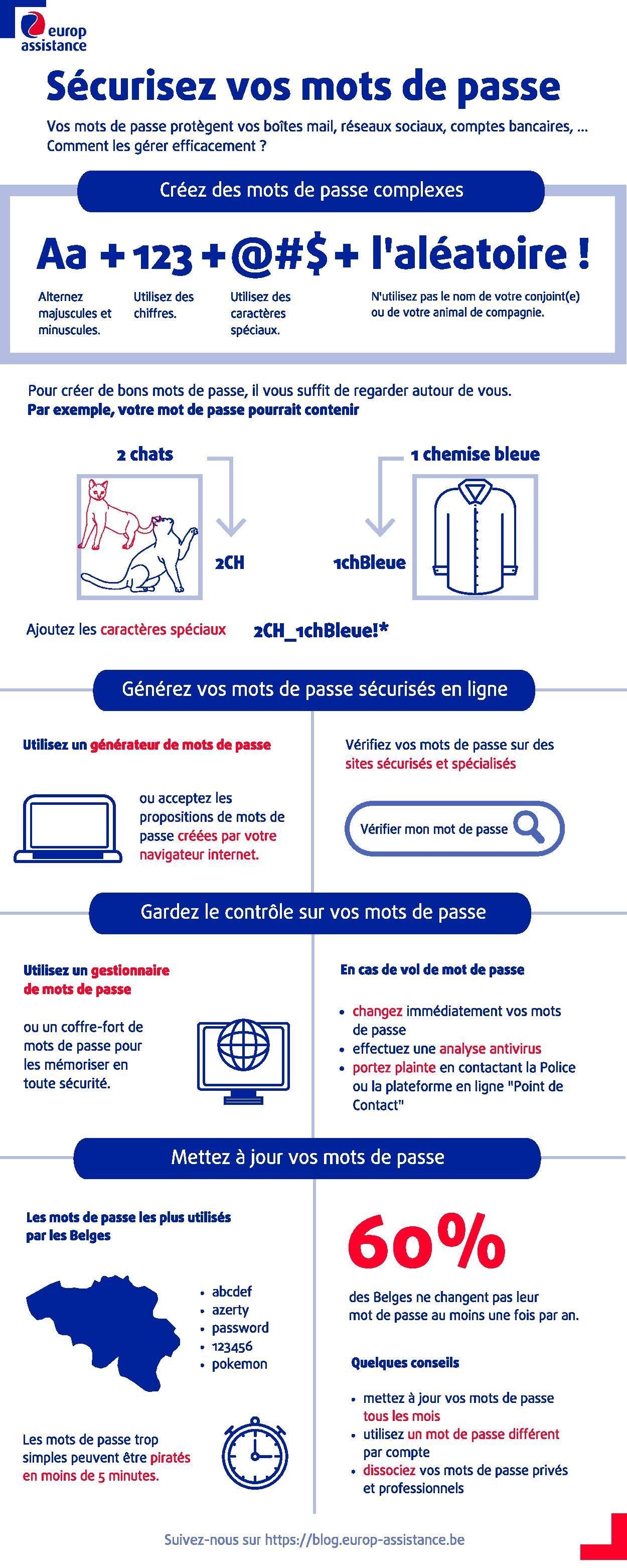
One last tip? Keep your personal and work passwords separate. To find out more about this, don't hesitate to read our tips for secure remote working!
Article written in collaboration with We are the Words.