At a glance
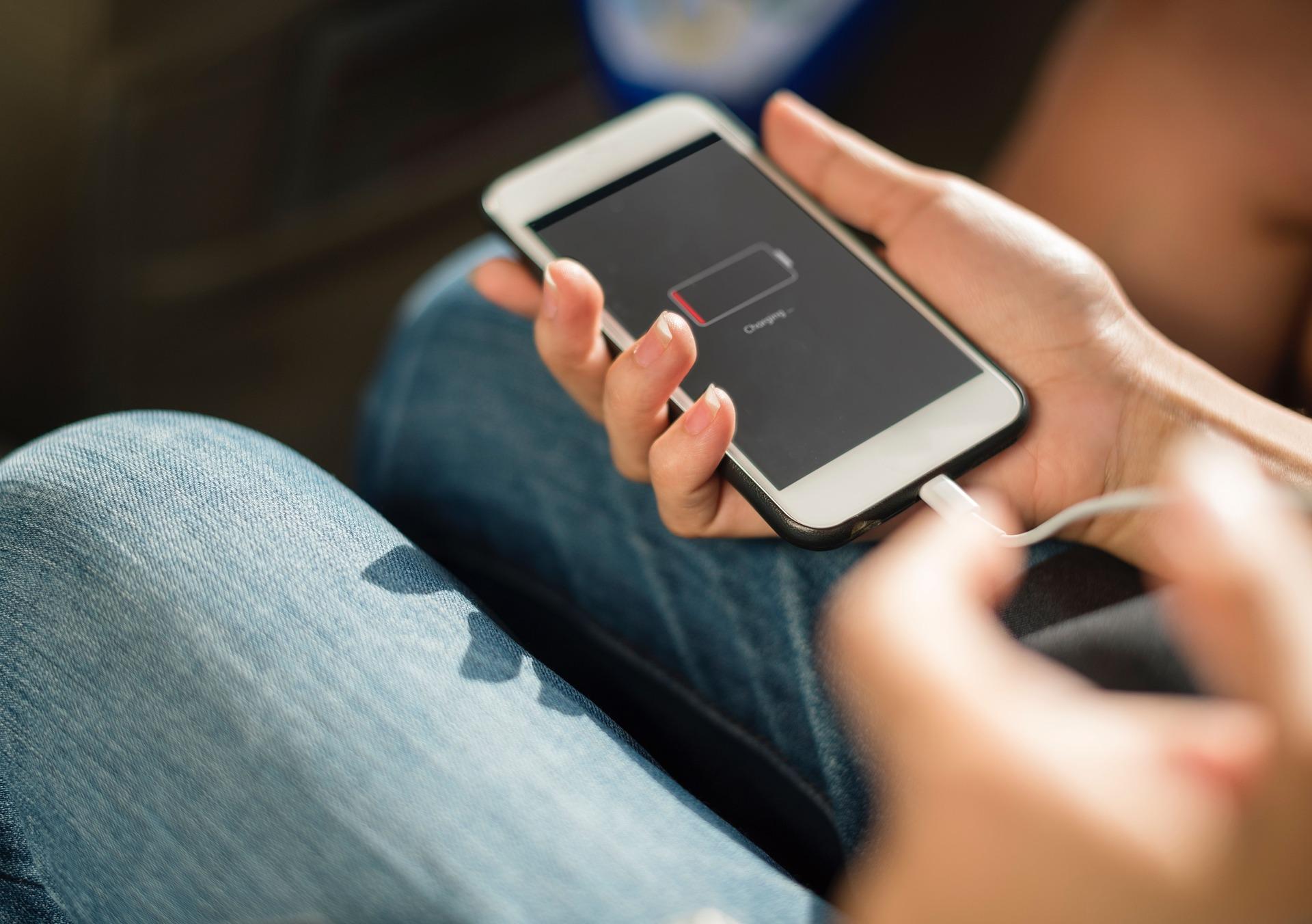
Does your smartphone's (or laptop's) battery drain quickly? There are various tricks to help save your smartphone's battery.
Our basic advice is to charge your phone on the mains. But there are other tricks to help save your smartphone's battery.
What's more annoying than a mobile phone that can't last the day on its battery? It's barely 4pm, you're at 10%, and you've barely used your smartphone...
But are you being careful with your phone? Do you know the small settings that help save your smartphone's battery?
Saving your smartphone's battery by managing your apps
The apps you download consume energy. And for some of them, a lot of energy!
1. Update your phone and its apps
We can never stress enough the power and benefits of updating. Updating regularly helps save your smartphone's battery. Because developers are constantly looking for technical ways to make their creation as energy-efficient as possible for your phone.
2. Target background refreshing
Some apps, particularly messaging or social media apps, are active all the time. Proof of this: you can receive notifications at any time. They refresh in the background, drawing energy from your battery.
You can easily adjust this in the apps' settings. Simply uncheck the "background refresh" option. You'll be surprised how many apps are active on your phone all the time!
3. Close and delete unused apps
As soon as you open an app, it stays active, even if you're not using it. It therefore consumes energy unnecessarily. Remember to always close what you're no longer using.
Likewise, to save your smartphone's battery, sort through your apps! Delete any apps you no longer need.
Adjust your settings to save battery
Some settings, configured and enabled by default, can drain your battery.
1. Turn off sharing and connection settings
The settings that enable your smartphone's connectivity are very energy-hungry. They're always active, ready to connect you within seconds. So remember to adjust the settings for:
- your Wi-Fi
- your Bluetooth
- your GPS
- your NFC - Near Field Communication -: this is the technology that lets you pay contactless or validate a public transport pass.
2. Play with the backlight intensity
Your screen's brightness is set automatically, for optimal comfort. But it may be better to select the intensity level yourself. A dimly lit screen will help you save on battery!
Don't hesitate to also experiment with your smartphone's sleep or auto-lock settings. A screen that's off will consume less than a screen that's always on!
3. Enable airplane mode at night
At night, the human body recharges its energy. This is the exact opposite of a smartphone: even doing nothing, its battery gradually drains. We recommend turning it off at night, or at the very least, putting it in "airplane mode".
Use the right connections
1. Charge with the right charger
It's not uncommon to use your tablet's charger to charge your phone, and vice versa. This practice is strongly discouraged. As we already explained in our article on your computer or phone overheating, every smartphone should be charged with its own dedicated charger.
The risk? A mismatch between the charger's power output and what the smartphone can handle. Even if it feels like charging is faster, your battery might not be able to cope.
This bad practice is also responsible for an increasingly frequent number of fires caused by overheating.
2. Prefer mains sockets
Smartphones powered by mains sockets charge faster than phones plugged into a computer's USB port, for example. A longer charging time puts more strain on the battery and, as a result, wears it out faster.
3. Limit charging time
Charging a phone for too long can really harm how it works. To save your smartphone's battery, don't leave it plugged in longer than necessary.
Also avoid charging your smartphone overnight. Two reasons:
- It charges throughout your entire sleep, whereas in reality, to reach 100% charge, it would only need a maximum of 2 hours.
- There could be a malfunction or overheating, leading to an electrical fault or a fire.
It's therefore essential to charge your phone during the day, if only to keep an eye on it!
How to save your laptop's battery
Many of us use a laptop. At school, while working from home or in our personal lives, this portable device goes everywhere with us. As with a smartphone, we depend on its charge.
So, what should you do to save your laptop's battery?
1. Update, again and again
To save your laptop's battery, install your updates regularly! These help optimise the use of the system and software.
2. Avoid extremes
Batteries are made of chemical alloys that can break down or deactivate if your computer discharges completely. You could lose 20% of its battery life. That said, don't panic. Laptops are designed to avoid this loss of battery life.
Conversely, there's no need to charge all the way to 100%! Overcharging, or perpetual or overly long charging, can have harmful effects on the battery.
3. Don't remove the battery
In everyday use, you keep your laptop plugged into the mains. Some PCs let you remove the battery. We recommend leaving it in place, even though your plugged-in computer could run without it.
Indeed, over the long term, a rarely used battery could lose some of its capacity. During a power cut and without another way to charge, your laptop could shut down!
Another tip: unplug the charger at night. The precautionary principle is the same as for smartphones. An electrical malfunction could occur, potentially causing a fire.
4. Play with the settings and software
Just as with saving your laptop or smartphone's battery, use settings and software wisely:
- turn off Bluetooth, location or Wi-Fi functions when you don't need them;
- adjust the settings related to battery, sleep mode, screen brightness, etc.;
- avoid running too many programs at the same time;
- eject external devices if you no longer need them;
- configure software that updates itself automatically, such as your email client.
Saving your laptop or smartphone's battery comes down to small details. But you'll see that by tweaking a few settings, deleting a few apps or using the right charging techniques, you'll manage to put less strain on your battery!
The disaster: your computer no longer responds. Is it the battery? Or something else?Discover what to do in case of a computer crash.
Article written in collaboration with We are the Words.