At a glance
What should you do urgently when your laptop gets wet? How can you avoid the worst?
The three main things to do when a laptop gets wet: unplug, dry, and... wait. Here's how.
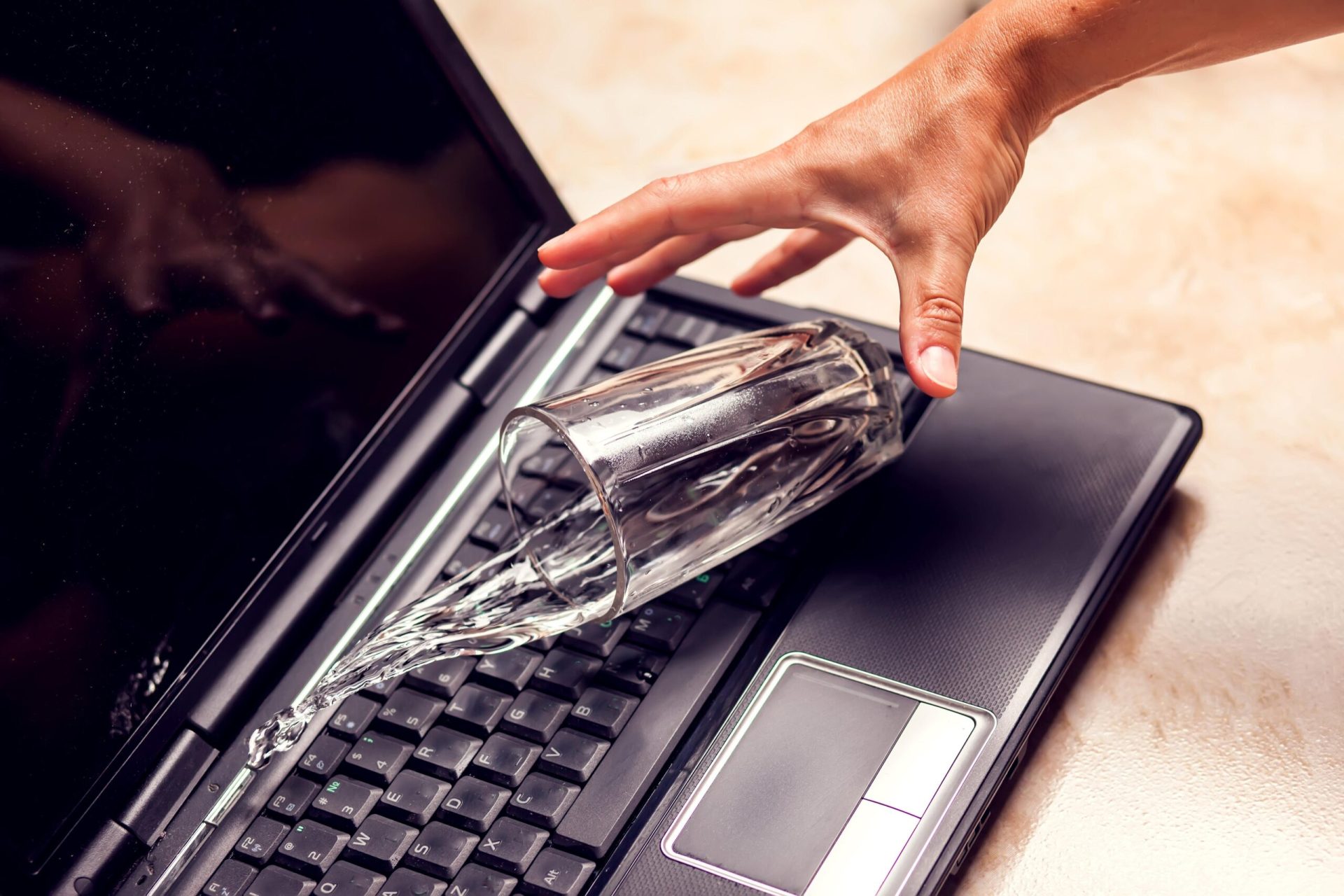
Oh no! A glass of water, cola or coffee spills onto your keyboard.
Or you left your laptop out in a heavy rain shower...
Once the shock wears off and you've stopped looking for who's to blame, it's essential to act quickly. Stay calm and follow our recommendations:
Your laptop got wet: three things to do
1. Unplug everything
You don't need a physics degree to know that "water + electrical components" don't mix well. If your laptop gets wet, immediately unplug the power source: this helps you avoid harmful short circuits.
Next, force your computer to shut down by holding the power button for a few seconds. It doesn't matter what tasks were running.
Then, unplug all connected devices. Mouse, second screen, USB stick or other data storage device. This prevents short circuits from also damaging your other devices.
If possible, remove the battery. Warning: don't start dismantling your computer if you're not comfortable with computer hardware.
2. Dry everything off
The second step for a laptop that has gotten wet is to remove as much liquid as possible. To do this, you have two allies:
- Gravity
- An absorbent cloth (microfibre) or absorbent paper
Place your laptop upside down, keyboard facing down, over a towel. You can of course turn your laptop over above a sink, but be careful not to cause a second accident. Gravity will let most of the liquid drain out of your laptop.
Avoid shaking your laptop: let gravity do the work. The liquid will drain out more slowly, but shaking it risks sending liquid into parts that are still dry.
Blot and dry the outside of your laptop as much as possible using a cloth or absorbent paper. Go over the keyboard, the various ports (power socket, USB connections) and the technical openings (battery ventilation).
Did you spill a thicker liquid (like soda)?
Lightly dampen your cloth. If water can cause serious damage, liquids like soda can be even more harmful. Don't hesitate to contact support immediately (the computer's brand, the retailer) so they can tell you what to do.
Hairdryer and rice
You can try drying your laptop with a hairdryer. A few warnings:
- Use your hairdryer on its lowest heat setting. Drying at a high temperature could cause further damage to your computer.
- Make sure you've thoroughly hand-dried the various openings first. The airflow from the hairdryer could push water droplets further inside the device.
Some websites also recommend using a bowl of rice to dry the computer. As we mentioned in our article on phones that fell in water, this technique can be just as harmful as it is helpful (by speeding up corrosion).
3. Wait, then test gradually
Let your laptop air dry for at least 24 hours. Don't try to speed up the process by placing it on a radiator or in the sun. As we mention in our article on computer overheating, exposing your device to excessive heat can harm its proper functioning.
So, as the saying goes, "patience is a virtue".
Once more than 24 hours have passed, it's time for the moment of truth. You should treat your laptop like a patient recovering from illness, and go easy on it. Gradually test its functions, in this order:
- Turn on the laptop and see how it reacts
- Try the basics: the keyboard, the built-in trackpad, and the power supply
- Test your entire keyboard by opening a simple text editor, like Notepad
- Open a program you use most often (word processor, browser, drawing software, video game) and observe how your computer behaves: is it slower or noisier than before?
- Check your files: has the computer kept all your data?
- Plug in your other devices (external mouse, USB stick, second screen) and check how they respond
If the results aren't satisfactory, turn off your computer straight away and contact a repair technician. They will then be able to open up your laptop, dry any parts that may still be damp, and replace or repair any damaged components.
Your computer got wet: how can you prevent future disasters?
The best advice remains this: keep drinks away from your laptop. But since we know very few of us actually follow that advice, here are three other tips:
- Back up your data regularly to external devices or to the Cloud so you can recover it in case of damage
- Invest in a rigid keyboard cover: if you need to remove it to type, at least your laptop is protected the rest of the time
- Take out insurance when you buy your laptop, whether through the retailer, the manufacturer, or an insurer
Feel free to check out our Safe & Connected assistance service.
Article written in collaboration with We are the Words.